

Fallout 76 is finally out, but it’s missing some of the graphical options PC players are used to. Fear not, though – you can just change it all manually.
If you want to make some changes, you simply need to make a copy of the Fallout76prefs.ini file. Rename it to Fallout76Custom.ini so you can differentiate the two, then delete the contents of the Custom file (not the original file).
You can now edit the contents of your Custom .ini file in notepad. As long as you keep them in the same folder, any changes made to the Custom file will overwrite files in the other .ini, which means you only need to delete your changes to revert.
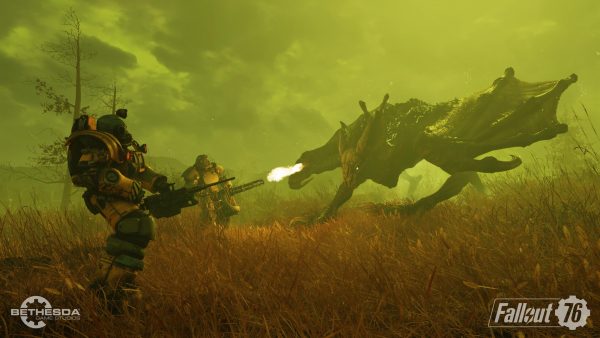
Here are the changes you should make to [Display]:
Fallout 76 turn off depth of field
[Display]
fDOFBlendRatio=0
fDOFMinFocalCoefDist=999999
fDOFMaxFocalCoefDist=99999999
fDOFDynamicFarRange=99999999
fDOFCenterWeightInt=0
fDOFFarDistance=99999999
These settings should turn off depth of field and make the game look much more crisp.
If you want to alter your field of view, pop these settings in the [Display] section:
Fallout 76 alter depth of field
fDefault1stPersonFOV=90.00
fDefaultWorldFOV=90.00
You can set those values however you want, but be aware that going too high could cause issues. If you want to change the antialiasing from TAA to FXAA, just add this setting under [Display]:
Fallout 76 FXAA
sAntiAliasing=FXAA
Now go and take back your freedom to mess with settings as a PC user this Reclamation Day.
The post How to make Fallout 76 look better on PC – turn of depth of field and adjust FOV appeared first on VG247.
from VG247 https://ift.tt/2DnyRTc


No comments:
Post a Comment